When you install Sync-o from the Atlassian Marketplace, the installer lets you check Confluence alongside Jira. You should always check this box — but even if you do, the Confluence connection sometimes fails silently. If that happens, you'll need to connect it manually.
This guide covers both: checking the right box during install, and verifying (or fixing) the connection afterwards.
Tip: Most Atlassian admins will already know how to manage app connections. If you're new to Forge apps, this guide walks through it in detail.
Step-by-Step Guide
Step 1: Check Confluence During Install
When installing Sync-o from the Atlassian Marketplace, you'll reach the "Select where to connect the app" screen. Make sure the Confluence checkbox is checked alongside Jira before clicking Review.
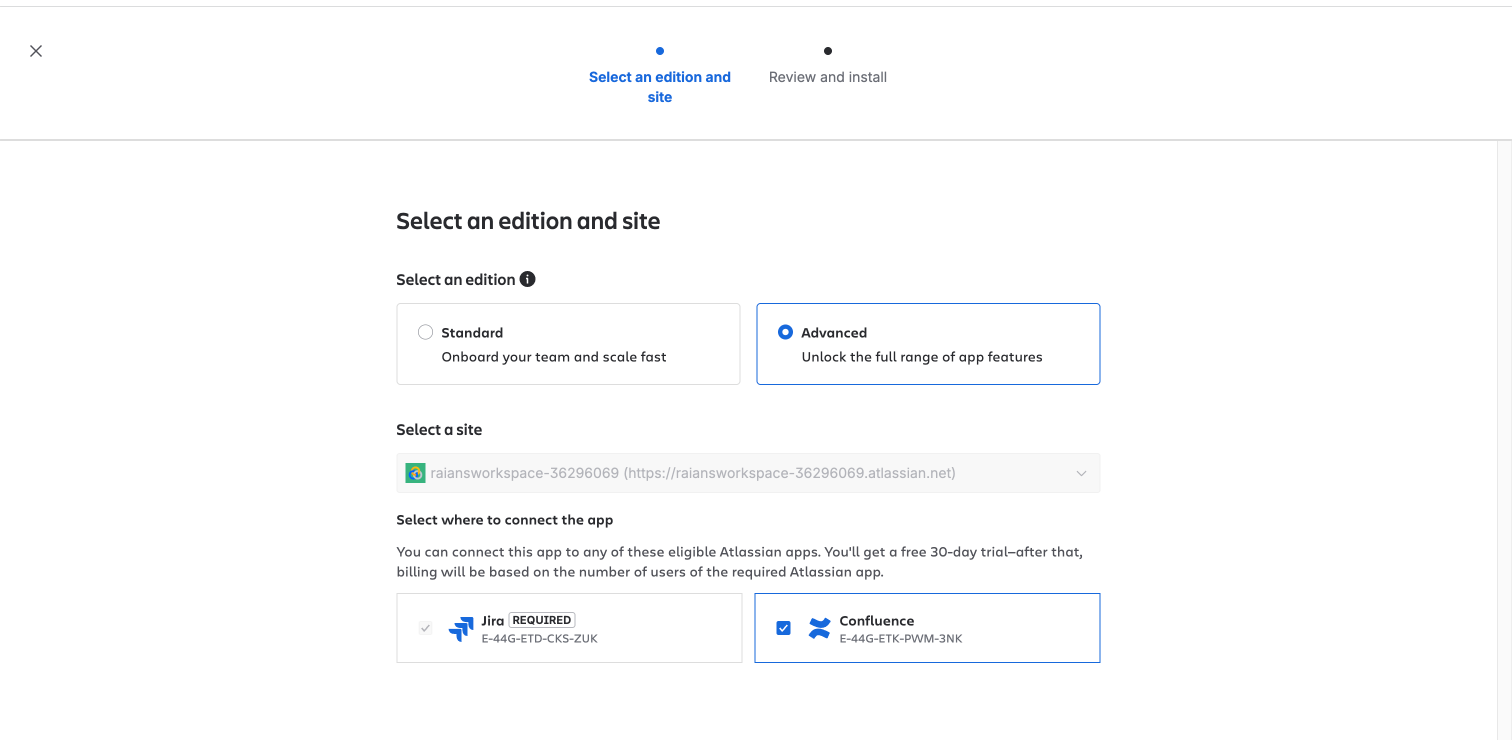
Note: Even with the Confluence box checked, the connection can occasionally fail. If Sync-o isn't updating your docs after install, follow the steps below to verify and fix the connection.
Step 2: Verify the Connection
After install, go to Settings → Apps → Connected apps and click View app details next to Sync-o. You'll see it is connected to Jira Apps (marked as REQUIRED). Check whether Confluence is also connected.
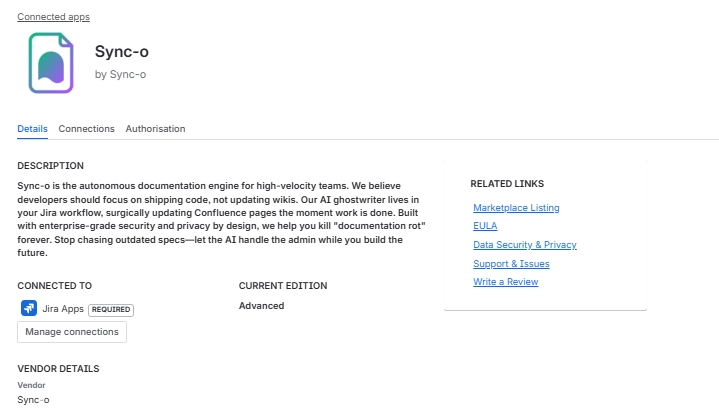
Step 3: Connect Confluence Manually (If Needed)
Click the Connections tab. If Confluence shows NOT CONNECTED, click the Connect button. A dialog will appear — review the Actions in Confluence permission and click the blue Connect button.
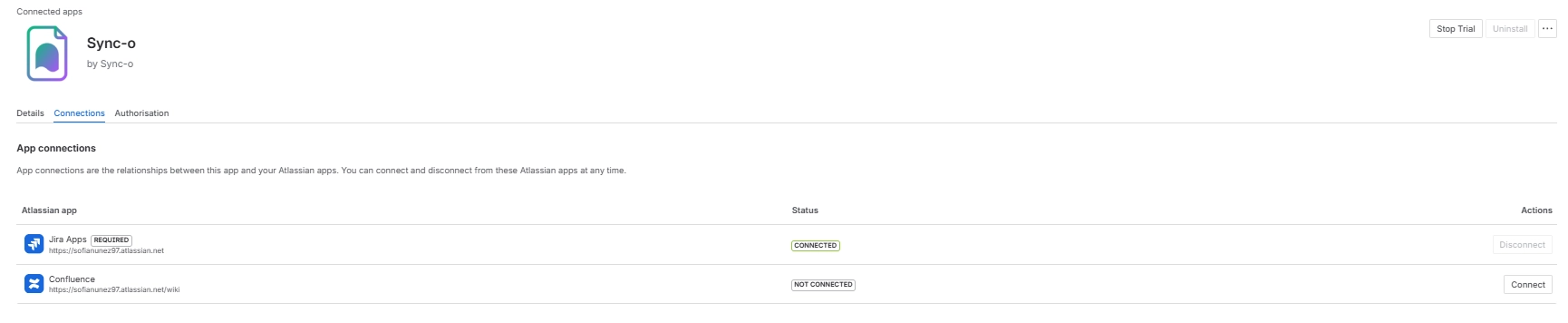
Connections tab — click Connect next to Confluence
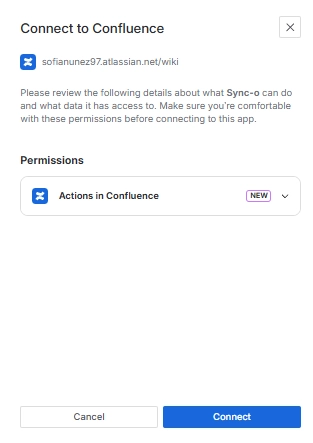
Review permissions & click Connect
After Connecting
Once Confluence is connected, Sync-o can read and update your Confluence pages. You're now ready to:
- Link Confluence pages to Jira tickets — paste the page URL into a ticket's description, comment, or link field
- Configure automation — set up when Sync-o should update docs (e.g., when a ticket moves to Done)
- Adjust confidence thresholds — control whether updates are published immediately or saved as drafts
Need help? If the Connect button doesn't appear or you see a permissions error, make sure you have Atlassian admin or site admin access. Only admins can manage app connections.